
Scanning documents with scanservjs
For many people, document management goes hand in hand with document scanning, which is hardly surprising, since so many documents still exist only on paper. SeedDMS was never designed to produce documents, whether by scanning them or by creating blank files for further editing. Its focus is on storage and on the workflow that begins once a document enters the DMS. Nevertheless, a smooth path from a paper document to long-term storage in SeedDMS is valuable in any overall workflow, and SeedDMS already provides the tools (namely extensions) and an API to make this possible. What is still missing is a preferably web-based scanning application that can interact easily with SeedDMS. Scanservjs is exactly this, a web based scanner software, with
- support for many different scanner brands and models,
- preprocessing of scanned documents,
- a simple REST API to access scanned documents,
- and a well defined path to upload them into SeedDMS
The real challenge discussed in this article is bringing scanservjs and SeedDMS together in a way that feels intuitive to users.
One obstacle is where the two applications are installed. Scanners are usually located in a private network behind a firewall, so scanservjs must run in that network as well in order to see them. SeedDMS could be installed there too, perhaps even on the same server, which would be the simple case. Quite often, however, it sits on the other side of the firewall on the public internet. This limits the ways in which scanservjs and SeedDMS can exchange documents.
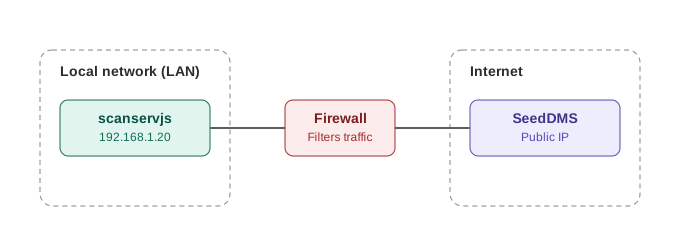
There are basically two solutions to this:
- punch a hole in the firewall to allow access on the documents from the public internet (of course with some kind of access restrictions)
- configure scanservjs to upload a scanned document into SeedDMS
Both solutions are possible, but of course have a different workflow.
SeedDMS fetches documents from scanservjs
This solution requires access from SeedDMS on the API of scanservjs.
This is the case if either the two are on the same network already or
by punching a hole in the firewall, which is often not a viable
option. Anyway, SeedDMS uses the endpoints starting with
/api/v1/files only, so it’s sufficient to make those accessible.
Start with a regular install of scanservjs and make sure it finds
your scanner on the network and its API is
accessible. Consult the documentation of scanservjs which explains
various install options. In SeedDMS you will need the
scanservjs_client
and credential_mgr
extensions. credential_mgr is an extension used by many other
extensions to store an uri and credentials. In this case it stores the
url where scanservjs is located. scanservjs_client adds another
field in the form for adding or updating a document. It’s labeled
‘Scanner’ and its input field must be filled with the name of a
scanned document. Once you start typing the filename in that field,
SeedDMS will list the matching files on the scanservjs server. Pick
one, optionally fill out the other fields, and hit the submit button
of the form to add or update a document. SeedDMS will fetch the
document and (if configured) delete the scanned file on the scanservjs
server.
Scanservjs uploads the scan to SeedDMS
The second solution requires access from scanservjs to the SeedDMS
Server. This is often the case, because outgoing network connection
are usually not restricted, unless explicitly configured. The two
SeedDMS extensions from Solution 1 are not needed either. Instead,
you will have to add some configuration to scanservjs. Place the
following into the file config.local.js
const fs = require('fs');

/**
 * Function to upload a file to a SeedDMS instance.
 * @param {object} fileInfo - Object containing the full file path.
 * @param {string} url - The base URL for the Seeddms instance.
 * @param {string} token - The authorization token.
 * @param {integer} folderid - Id of folder.
 * @returns {Promise<string>} The response text from the server.
 */
async function uploadToSeeddms(fileInfo, url, token, folderid) {
  const filename = fileInfo.fullname.split('/').pop();

  const fileBuffer = await new Promise((resolve, reject) => {
    fs.readFile(fileInfo.fullname, (err, data) => {
      if (err) {
        return reject(err);
      }
      resolve(data);
    });
  });

  const fileBlob = new Blob([fileBuffer], { type: 'application/octet-stream' });

  var data = new FormData();
  data.append('document', fileBlob, filename);
  data.append('name', filename);

  const requestOptions = {
    method: 'POST',
    headers: {
      'Authorization': `Bearer ${token}`,
    },
    body: data,
  };

  try {
    const response = await fetch(`${url}/restapi/index.php/folder/${folderid}/document`, requestOptions);
    if (!response.ok) {
      const errorText = await response.text();
      throw new Error(`HTTP error! Status: ${response.status}. Response: ${errorText}`);
    }
    return await response.text();

  } catch (error) {
    console.error('Upload failed:', error);
    Process.spawn(`echo 'SeedDMS upload error: ${error.message}'`);
    throw error;
  }
}

...

module.exports = {

...

  actions: [
    {
      name: 'Upload to SeedDMS',
      async execute(fileInfo) {
        uploadToSeeddms(fileInfo, "<url of seeddms>", "<api key>", <folder id>);
      }
    },
  ]
};
This code is mostly a copy of an example for uploading to Paperless
NGX, which can be found in the
documentation
of scanservjs. Before you save the changes in config.local.js and
restart scanservjs make sure to replace the placeholders <url of seeddms>, <api key>, <folder id> with reasonable values. <folder id> is the id of the folder where all documents are uploaded to.
The code adds a so called ‘action’ on the ‘Files’ page of scanservjs. Once you select one or more files in the list of already scanned files, the ‘Run action’ menu with an item ‘Upload to SeedDMS’ will be enabled. Click on the menu item and the files will be uploaded to SeedDMS. Since the upload folder is hard coded in the code above, all scanned files will be placed in one folder in SeedDMS. Those documents will most likely have to be moved to a different place. This is what the extension menu_import was created for. It lists all documents of a configurable folder as a submenu in the main navigation. Clicking on one of the documents in that menu, will move it (after a confirmation) into the current folder.
With a minor adjustment in config.local.js a file can even be uploaded
automatically after scanning. Just add the following code within the
module.export structure.
module.exports = {
...
  /**
   * This method is called after every scan has completed with the resultant
   * FileInfo.
   * @param {FileInfo} fileInfo
   * @returns {Promise.<any>}
   */
  async afterScan(fileInfo) {
    return uploadToSeeddms(fileInfo, "<url of seeddms>", "<api key>", <folder id>);
  },
...
};
Comparison
Besides their technical differences, the two proposed solutions follow very different workflows. Solution 1 is much closer to a regular upload of a file from your local disk; only the source of the document changes. All metadata, as well as reviewers, approvers, and so on, can be set during the upload. In Solution 2, the scanned file is uploaded with a fixed owner and without any metadata other than the name. Reviewers, approvers, and the like must be set afterwards, probably once the document has been moved to its final destination. Both approaches have their merits, and it is ultimately up to you to choose the one that best fits your purpose and technical constraints.